Why you get error "Disconnected from the AOS" when you open Visual Studio and try to see Application Explorer tool box to customize something for Microsoft Dynamics AX Enterprise Portal or SSRS Reports?

Reason:
The Visual Studio instance you open does not refer the configuration which is configured. Such error you will encounter when you have different client and AOS system. For example; Server 1 is having Application Object Server (AOS) and System 1 is having AX client so you have AX client and server on different machines. Other way your Visual Studio instance is not connected to target Microsoft Dynamics AX AOS configuration.
Applied on: Dynamics AX 2012 R2
Prerequisite: Basic Dynamics AX 2012 knowledge
Target audience: AX programmers
Assumption: You are familiar with Dynamics AX 2012 and Visual Studio .Net
Solution:
Option 1: You should have AX client and server on the same machine. In general development server with multi users is not configured with single machine based.
Option 2: If your AX client and server are on different machines, you need to launch your Visual Studio instance using a shortcut from AX client machine and that shortcut should have target AOS configuration. E.g. You have an AX configuration file called VAR_DEV.AXC to launch the correct AOS. Get a shortcut of your Visual Studio on AX client machine right click on it. You will see the property dialog as shown below.
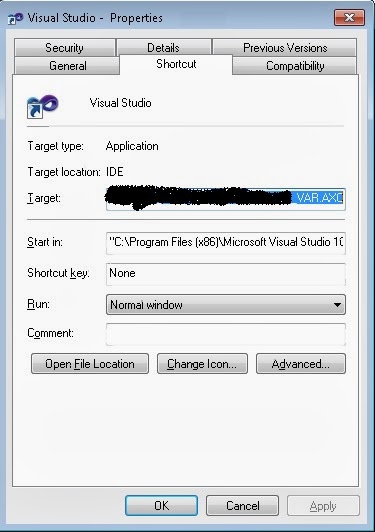
You will see the Visual Studio instance common IDE path [see above]. This is the default path. The depends based on installation.
The Target field should have path "C:\Program Files (x86)\Microsoft Visual Studio 10.0\Common7\IDE\devenv.exe". This is the default path.
The action you need to perform is to add target for AOS configuration file to it. To achieve this replace the path with "C:\Program Files (x86)\Microsoft Visual Studio 10.0\Common7\IDE\devenv.exe" /AXConfig \\[File location]\DEV04_VAR.AXC
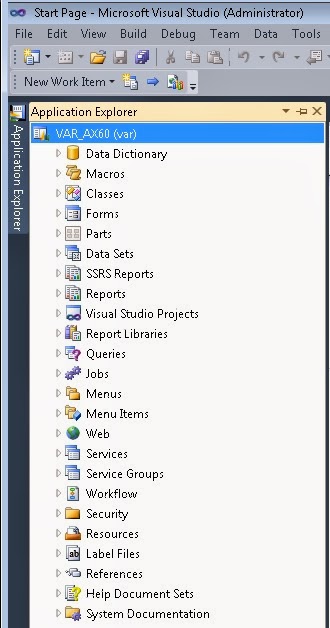
After modifying this value click on Apply button. Now you launch your Visual Studio by double clicking this Visual Studio Icon. It will allow you to see AOT objects as shown below.
Option 3: On AX client machine configuration utility you can upload configuration file DEV04_VAR.AXC. To do this, open Microsoft Dynamics AX 2012 Configuration Utility from Administrative Tools. Click on Manage button then Set Configuration Stone.

Click on Apply button then OK.
Now you can launch your Visual Studio on AX client machine from Start button > All Programs > Microsoft Visual Studio 2010 folder > Microsoft Visual Studio 2010.

Hope this was useful for you. You may leave your comments below.
Reason:
The Visual Studio instance you open does not refer the configuration which is configured. Such error you will encounter when you have different client and AOS system. For example; Server 1 is having Application Object Server (AOS) and System 1 is having AX client so you have AX client and server on different machines. Other way your Visual Studio instance is not connected to target Microsoft Dynamics AX AOS configuration.
Applied on: Dynamics AX 2012 R2
Prerequisite: Basic Dynamics AX 2012 knowledge
Target audience: AX programmers
Assumption: You are familiar with Dynamics AX 2012 and Visual Studio .Net
Solution:
Option 1: You should have AX client and server on the same machine. In general development server with multi users is not configured with single machine based.
Option 2: If your AX client and server are on different machines, you need to launch your Visual Studio instance using a shortcut from AX client machine and that shortcut should have target AOS configuration. E.g. You have an AX configuration file called VAR_DEV.AXC to launch the correct AOS. Get a shortcut of your Visual Studio on AX client machine right click on it. You will see the property dialog as shown below.
You will see the Visual Studio instance common IDE path [see above]. This is the default path. The depends based on installation.
The Target field should have path "C:\Program Files (x86)\Microsoft Visual Studio 10.0\Common7\IDE\devenv.exe". This is the default path.
The action you need to perform is to add target for AOS configuration file to it. To achieve this replace the path with "C:\Program Files (x86)\Microsoft Visual Studio 10.0\Common7\IDE\devenv.exe" /AXConfig \\[File location]\DEV04_VAR.AXC
After modifying this value click on Apply button. Now you launch your Visual Studio by double clicking this Visual Studio Icon. It will allow you to see AOT objects as shown below.
Option 3: On AX client machine configuration utility you can upload configuration file DEV04_VAR.AXC. To do this, open Microsoft Dynamics AX 2012 Configuration Utility from Administrative Tools. Click on Manage button then Set Configuration Stone.
Click on Apply button then OK.
Now you can launch your Visual Studio on AX client machine from Start button > All Programs > Microsoft Visual Studio 2010 folder > Microsoft Visual Studio 2010.
Hope this was useful for you. You may leave your comments below.


